Affiliate disclosure: this page contains affiliate links — if you buy through them we may earn a commission at no extra cost to you. As an Amazon Associate we earn from qualifying purchases.
Mac Mini M4 (2024) — Quick Specs Summary
| Component | Specification | Upgradeable? |
|---|---|---|
| Processor | Apple M4 (8-core CPU, 10-core GPU) | No |
| RAM | 16GB, 24GB, 32GB (unified, LPDDR5X) | No — soldered to SoC |
| Internal SSD | 512GB, 1TB, 2TB (NVMe-based) | No — soldered (limited third-party options emerging) |
| Ports | 3× Thunderbolt 4 (USB-C), 2× USB-C (USB 3, 10Gb/s) on the front, HDMI 2.1, Gigabit Ethernet — no USB-A ports | Expandable via TB docks |
| Wireless | WiFi 6E, Bluetooth 5.3 | No |
| Power Supply | USB-C power delivery (140W) | No — integrated |
| Display Outputs | Supports up to 2× external 6K displays or 1× 8K via TB4 | Via Thunderbolt expansion |
| Price | £499–£699 (base M4 to 32GB) | N/A |
Can You Upgrade the Mac Mini M4?
Short answer: No. The M4 Mac Mini is sealed. All memory and storage are soldered directly to the system-on-chip (SoC), making upgrades impossible without apple service involvement.
However, third-party manufacturers are beginning to develop external adapter boards that may allow storage expansion via Thunderbolt, though these remain experimental and unsupported by Apple. If you anticipate needing more than 32GB RAM or 2TB storage, you must choose your configuration at purchase.
The M4 Philosophy: Configuration at Purchase
Apple’s philosophy with Apple Silicon is “sealed and optimised”. The M4 Mac Mini is engineered for:
- Minimal thermals (passive cooling possible on base models)
- Maximum efficiency (unified memory reduces power draw)
- Compact form factor
This design means all upgrade decisions must happen before you buy. There’s no “upgrade later” option.
RAM Compatibility on M4
Why RAM Can’t Be Upgraded
The M4 integrates LPDDR5X RAM directly onto the processor die. This is fundamentally different from traditional computers where RAM modules slot into DIMM sockets. Soldering RAM onto the SoC is what enables the M4’s power efficiency and compact design—but it means no user upgrades.
What RAM Sizes Are Available?
- 16GB unified — entry-level, fine for browsing, office work, light media editing
- 24GB unified — sweet spot for developers, designers, content creators
- 32GB unified — recommended for professional video, 3D, or heavy multitasking
For most users, 24GB is the sensible upgrade from base 16GB. If you’re running virtual machines, heavy Adobe suites, or 4K editing, jump to 32GB.
SSD Compatibility on M4
Can You Replace the SSD?
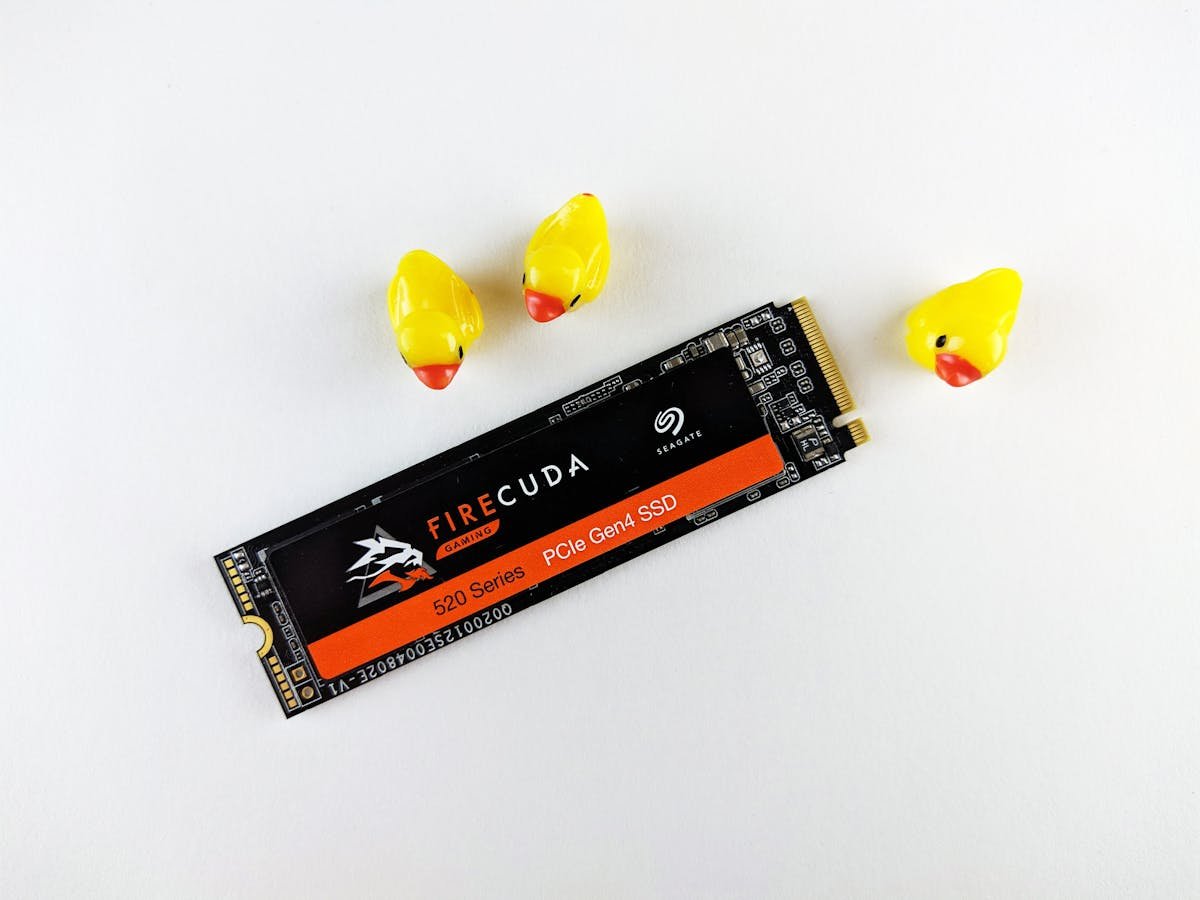
Not officially. Apple solders storage directly onto the logic board. Replacing the drive requires micro-soldering expertise and voids the warranty.
What About Third-Party Expansion?
Early experimentation with Thunderbolt external NVMe adapter boards is underway (e.g., prototype external SSD controllers via TB4 passing through NVMe), but these are not widely available or supported. If external storage expansion matters to you, expect 2–3 year wait for mature third-party solutions.
Available Storage Options
- 512GB — cramped for most users; consider only if external SSD is your primary storage
- 1TB — practical minimum; covers OS, apps, project files
- 2TB — comfortable for video editors, designers, developers
Pairing a base 512GB with a fast external Thunderbolt SSD is technically viable but adds cost and complexity. Popular external expansion options:
- Samsung T9 2TB — fastest portable TB4 SSD available
- SanDisk Extreme Pro Portable — durable external SSD
- Thunderbolt 4 Hub — multi-port expansion for peripherals
Power Supply & Thermal Considerations
USB-C Power Delivery
The M4 Mac Mini uses 140W USB-C power delivery. You cannot replace the power supply, but you can use third-party USB-C chargers rated for 140W+ to power the machine. This is useful if you already own a large Thunderbolt dock with native USB-C PD.
Cooling
The M4 uses passive cooling (no internal fans). Ambient room temperature matters—place it in a well-ventilated area. If your office is regularly above 25°C, monitor throttling during sustained workloads.
Display & Docking Compatibility
External Display Support
M4 supports:
- Up to 2× 6K displays at 60Hz via Thunderbolt 4
- Or 1× 8K display via single TB4 port
- HDMI 2.1 output limited to 4K 60Hz (not ideal for advanced displays)
Recommended Thunderbolt Docks
For maximum compatibility and expandability:
- Caldigit TS4 — 6 TB4 ports, 98W TB passthrough, Gigabit Ethernet, SD card
- OWC Thunderbolt Dock Pro — 15 ports (6 TB4 upstream), Ethernet, audio, SD
- Anker Thunderbolt Dock — affordable entry point with essential ports
A quality dock multiplies your port options and allows you to keep all peripherals connected.
WiFi & Bluetooth Specs
Wireless Upgrades?
No. WiFi 6E and Bluetooth 5.3 are soldered and cannot be replaced. If you need legacy Bluetooth 4.0 device support, you’ll need a USB Bluetooth adapter.
Real-World WiFi 6E Performance
WiFi 6E (802.11ax on 2.4/5/6GHz) delivers ~1.2 Gbps under ideal conditions. In typical office: 400–600 Mbps. Sufficient for 4K streaming, video conferencing, and moderate file transfers. For true LAN speeds, use the Gigabit Ethernet port (comes with the M4).
Upgradeability Score
| Category | Score | Notes |
|---|---|---|
| RAM Upgrade | 0/10 | Soldered; impossible |
| SSD Upgrade | 1/10 | Soldered; third-party solutions emerging |
| Ports & Connectivity | 9/10 | 3× TB4 + Thunderbolt docks = highly expandable |
| Display Support | 8/10 | Excellent multi-display capability via TB docks |
| Overall Upgradeability | 3/10 | Choose config at purchase; external expansion only |
Frequently Asked Questions
Can I upgrade M4 Mac Mini RAM to 64GB?
No. Maximum is 32GB (soldered). There’s no official upgrade path. If you need >32GB, consider M4 Pro or wait for future generations (though Apple may never offer >32GB in the base M4).
What’s the cheapest way to get 2TB storage?
Buy the 2TB model upfront (£699 for M4 24GB/2TB). Pairing 1TB internal + external SSD is more flexible but costs extra. Factor in Thunderbolt SSD pricing (£150–300 for 1–2TB external).
Is Thunderbolt 4 backward compatible with USB-C?
Yes. TB4 is a superset of USB 3.1 and Thunderbolt 3. Use it with USB-C cables and USB hubs; you’ll get USB 3.1 speeds (~10 Gbps) instead of TB4 speeds (40 Gbps). Cables matter—always use certified TB4 cables for full 40 Gbps.
Can I use the M4 without a dock?
Yes. HDMI, 2× USB-A, Ethernet, and 3× TB4 ports cover most setups. A dock is optional unless you need 10+ simultaneous peripherals.
Will the M4 thermal throttle in hot environments?
Unlikely under normal use. Passive cooling is sufficient up to ~25°C ambient. In consistently warm rooms (>27°C), monitor CPU temperature during sustained video exports. Consider desk placement away from direct sunlight.
Recommended Products
There are no internal upgrade parts to recommend for the M4 Mac mini. Its unified memory is part of the M4 package and its SSD is a proprietary module on the logic board — neither is user-replaceable, and no DDR5 SO-DIMM or M.2 NVMe drive will fit it.
What actually helps: choose the memory and storage you need at the point of order, and add an external Thunderbolt or USB-C SSD afterwards if you run short. We have removed the internal RAM and NVMe recommendations that previously appeared here.
| Product | Why We Recommend It | Amazon |
|---|
Prices and availability may vary. As an Amazon Associate, we earn from qualifying purchases.
Related Apple Upgrade Guides
- Which MacBooks Have Soldered SSD & RAM? Complete List (2012-2026)
- Can You Upgrade a MacBook? RAM, SSD & Storage Options by Model
- MacBook External Monitor Compatibility
- Apple MacBook Pro 15″ (2013)
- Apple Mac mini (2014)
- Apple Upgrade Guide
Not sure what fits? Use our free Compatibility Checker covering 3,195+ models.
Helpful Guides
Correction note: an earlier version of this page listed two USB-A ports and described the Mac mini as USB-C powered at 140W. Both were wrong. The M4 Mac mini has no USB-A ports at all — the two front ports are USB-C — and it has a built-in power supply with an IEC mains cord, not a USB-C charger. It cannot be powered over USB-C.