
Affiliate disclosure: this page contains affiliate links — if you buy through them we may earn a commission at no extra cost to you. As an Amazon Associate we earn from qualifying purchases.
ASUS ROG laptops — whether the premium Strix line or the tougher TUF series — are designed with upgrades in mind. Both RAM and SSD are accessible with basic tools, taking about 20 minutes total to upgrade. This guide covers both ROG Strix and ROG TUF models.
ASUS built these machines for gamers who want to push performance later. The bottom panel uses Phillips screws (not proprietary Torx), and both RAM slots and M.2 SSD slots are prominently placed on the motherboard. You’ll also likely find room for two M.2 drives on ROG machines — a significant advantage.
What You’ll Need
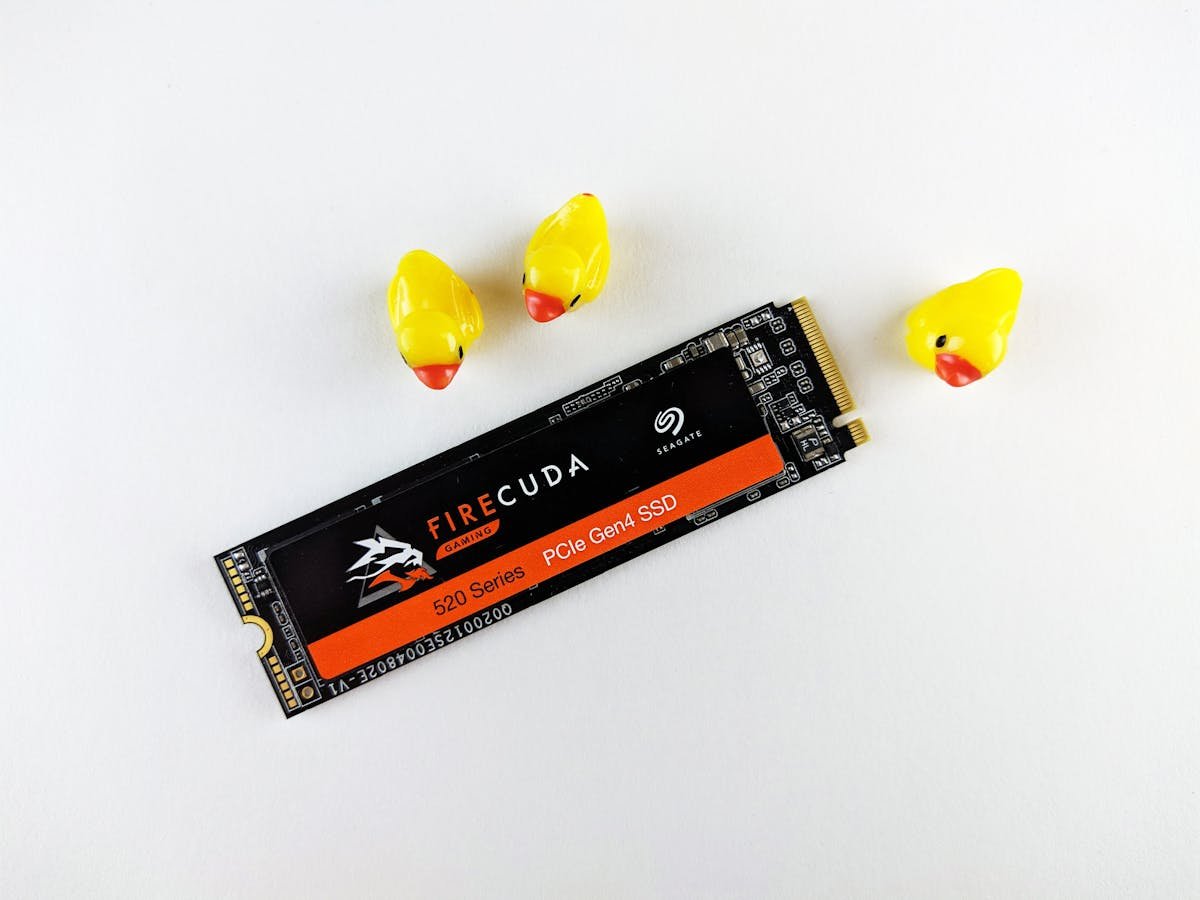
Gather these tools and components. ASUS ROG machines are straightforward to work on, and you likely have most of these items already.
| Item | Purpose | Where to Buy |
|---|---|---|
| Phillips Screwdriver (#0 or #1) | Remove bottom panel and SSD retention screws | Amazon |
| Anti-Static Wristband | Prevent static damage to RAM and SSDs | Amazon |
| DDR5 SO-DIMM RAM (16GB or 32GB, 5600–6400MHz) | Upgrade memory for gaming performance | Amazon |
| M.2 2280 NVMe SSD (1TB or 2TB) | Storage upgrade (Samsung 990 EVO or WD Black SN850X) | Amazon |
| Thermal Pads (5W/mK or higher) | Thermal interface between SSD and heatspreader (M.2 slots often have pads) | Amazon |
| Plastic Spudger | Safely pry open the bottom panel without scratching | Amazon |
Before You Start
Back up all data to an external drive or cloud storage, especially if you’re replacing the primary SSD where your games and OS live.
Power off completely and unplug the power adapter. ROG machines have powerful GPUs that generate heat — let the system cool for 5 minutes before opening it.
Discharge static electricity by wearing your wristband (grounded to a bare metal part of the chassis) before touching internal components.
Note the cooling system. ASUS ROG machines have aggressive cooling with heatsinks covering the M.2 slots. You may need to remove heatsinks to access SSDs — this is normal and straightforward.
Step-by-Step Guide
Step 1: Remove the Bottom Panel
Flip the ROG laptop over. You’ll see multiple Phillips screws holding the bottom panel (typically 8–12 depending on model). Most are standard size; some may be longer and hold specific components like fans or heatsinks — note which screws came from where if upgrading other components.
Remove all screws and set them aside on a clean surface. Some screws are captive (attached to the panel), but most will fall free — keep them organized.
With all screws removed, use your plastic spudger to gently pry up the edges of the bottom panel. The panel may be held by clips or adhesive around the perimeter. Work your way around and lift steadily. The panel should come free with gentle pressure.
Step 2: Locate RAM and M.2 Slots
Once the panel is off, you’ll see the motherboard, cooling system, and GPU (on most ROG Strix models). The RAM slots are typically on the left side (SO-DIMM format), and the M.2 SSD slots are in the centre or towards the right, often covered by heatspreaders.
ROG Strix and TUF models usually have 2 RAM slots and 2 M.2 slots. This is a major advantage — you can add a second SSD later if needed.
Step 3: Upgrade RAM
If you’re adding RAM to an empty slot, hold the new DDR5 SO-DIMM at a 45-degree angle with the connector facing down. Align the notch with the key in the slot and press down firmly. The spring clips should snap inward, locking the module in place parallel to the motherboard.
If you’re replacing an existing module, push the spring clips outward first — the module will pop up. Grasp it by the edges and remove it. Then insert the new module using the same 45-degree angle method.
Step 4: Locate and Remove M.2 Heatspreaders
Before accessing the SSD slots, you’ll likely need to remove heatspreaders. These are usually held in place by 1–2 Phillips screws. The heatspreader may have a thermal pad attached to its underside — be gentle when removing it.
Remove the screw(s), then lift the heatspreader straight up. It may stick slightly due to the thermal pad — don’t yank it. If it’s stuck, use your spudger to gently pry a corner free.
Step 5: Remove and Replace SSD
With the heatspreader off, you’ll see the M.2 SSD at a 30-degree angle. A single Phillips screw holds it in the slot at the far end. Remove this screw.
Gently push the SSD down (away from you) and it will pop up at the connector end. Grasp it and pull straight out. Check if there’s a thermal pad attached — if it’s still intact on the heatspreader, you can reuse it. If it came off with the drive, you’ll need a fresh pad for the new SSD.
Hold your new SSD at a 30-degree angle (connector pointing down), align the notch with the key, and slide it into the slot. Push down gently until the far end is level, then install the retention screw. Tighten firmly but not hard.
Step 6: Reinstall Heatspreaders and Check Thermal Contact
Carefully position the heatspreader back over the SSD slot. Ensure the thermal pad makes full contact with the top surface of the new SSD. If the pad is creased or damaged, replace it before reinstalling the heatspreader.
Reinstall the Phillips screw(s) holding the heatspreader. Firm but not hard — you’re securing a thin heatspreader, not a car engine.
If you upgraded the second M.2 slot or installed a second drive, repeat steps 4–6 for that slot.
Step 7: Reinstall the Bottom Panel
Position the bottom panel back onto the laptop, starting from the back edge. Ensure all clips align properly around the perimeter. Once seated, reinstall all Phillips screws in their original positions. Tighten firmly to ensure the panel is solid, especially around the GPU area where cooling is critical.
Verifying the Upgrade
Power on your ROG laptop. Windows should boot normally. Verify both upgrades once at the desktop:
RAM Verification: Open Settings → System → About. Look for “Installed RAM” — it should show your new total (e.g., 32GB if you upgraded from 16GB to 16GB + 16GB).
SSD Verification: Open File Explorer and check “This PC”. Your new SSD should appear with its full capacity. If it shows “Unknown” or “Uninitialized”, right-click in Disk Management and initialize it, then create a Simple Volume to use it.
Performance Check: Open Task Manager (Ctrl+Shift+Esc) and check the Performance tab for Memory and Storage stats. Both should show the upgraded capacities.
BIOS Check: Restart and press Delete (or F2) during boot to enter ASUS BIOS. The system info page should list your new RAM and storage configuration.
Troubleshooting
RAM not detected — Power off and reseat the module. Ensure the spring clips are fully engaged (they should be snapped in, not just resting). Try the other RAM slot to confirm both are working.
SSD not detected in BIOS or Windows — Check that the heatspreader is properly seated and the retention screw is tight (but not over-tight). Ensure the thermal pad isn’t blocking the SSD connector. Power off, reseat the drive, and try again.
Throttling or thermal throttling in games — This suggests poor thermal contact between the heatspreader and the new SSD. Power off, remove the heatspreader, and check the thermal pad. If it’s creased, torn, or not making full contact, replace it with a new one (5W/mK or higher for gaming laptops).
Won’t boot after SSD upgrade — If this is your primary drive, it’s blank. You’ll need to install Windows fresh or clone your old OS to the new drive. Use a Windows installation USB to set up the new SSD.
Partial SSD capacity recognized — Update the SSD firmware from the manufacturer’s support page. Newer firmware often improves compatibility and fixes capacity detection.
Recommended Upgrades
For ASUS ROG gaming laptops, invest in performance-tier components. Gaming workloads benefit from fast memory and storage.
Best RAM: Corsair Vengeance DDR5 SO-DIMM (16GB, 6400MHz) — Great for gaming, reliable, good warranty. £55–70 per module.
Best SSD: WD Black SN850X (1TB or 2TB) — Fast, reliable gaming drive with excellent sustained performance. £50–110.
For ROG Strix/TUF, 32GB total RAM (16GB + 16GB at 6400MHz) is recommended for modern gaming and streaming. For storage, 1TB for OS + games is minimum; 2TB is better if you have a large game library. Consider adding a second M.2 SSD later (you have the slot) to segregate OS and game drives.
FAQ
Can I add a second M.2 SSD to my ROG laptop?
Likely yes. Most ROG Strix and TUF models have two M.2 slots. The second slot may be occupied (check your current setup), or it may be empty and waiting for an upgrade. If empty, just insert a new SSD using the same 30-degree angle method.
What speed RAM should I buy for gaming?
DDR5 5600MHz is the minimum; 6400MHz is better for gaming. The extra bandwidth helps with frame rates in demanding titles, especially with high-end GPUs (RTX 4080 and up). For general gaming (60–144Hz), 5600MHz is fine. For competitive esports or streaming, 6400MHz is worth the extra cost.
Should I upgrade to 32GB or stay at 16GB?
For gaming only, 16GB is sufficient. For gaming + streaming, streaming + Discord + OBS, or editing, 32GB is recommended. Modern games use 10–14GB peak, but having headroom prevents stuttering when you’re also running other apps.
Will upgrading void my ASUS warranty?
Upgrading RAM and SSD is user-supported and won’t void the warranty. However, if you damage something else during the process (like the motherboard with static discharge), that’s on you.
What’s the difference between ROG Strix and ROG TUF?
Strix is premium and thin; TUF is tougher and more durable. Both are user-upgradeable. Strix targets enthusiasts who want thin, light gaming; TUF targets users who want durability and longer warranty. Upgradability is equal.
Do I need to update the BIOS after upgrading?
Usually no. ASUS BIOS typically auto-detects new RAM and SSDs. However, if the new components don’t show up in BIOS or Windows, updating to the latest BIOS version may help. Check ASUS’s support page for your model.
Recommended Products
These are the products we recommend based on this guide. All links go to Amazon where you can check current prices and availability.
| Product | Why We Recommend It | Amazon |
|---|---|---|
| Corsair Vengeance DDR5 SO-DIMM 32GB (2×16GB) 5600MHz | Top-rated DDR5 kit for gaming & productivity | View on Amazon |
| Kingston Fury Impact DDR5 SO-DIMM 32GB (2×16GB) 5600MHz | Excellent DDR5 alternative with XMP support | View on Amazon |
| Crucial DDR5 SO-DIMM 16GB 5600MHz | Affordable single-stick DDR5 | View on Amazon |
| G.Skill Ripjaws DDR5 SO-DIMM 32GB 5600MHz | High performance DDR5 for enthusiasts | View on Amazon |
| Samsung 990 Pro 2TB NVMe M.2 2280 | Fastest consumer NVMe — ideal for gaming & editing | View on Amazon |
| WD Black SN850X 2TB NVMe | Excellent Gen4 speed with heatsink option | View on Amazon |
| Crucial P5 Plus 1TB NVMe | Great value Gen4 SSD | View on Amazon |
| Kingston NV2 1TB NVMe | Budget-friendly with solid reliability | View on Amazon |
Prices and availability may vary. As an Amazon Associate, we earn from qualifying purchases.
Related ASUS Upgrade Guides
- Best RAM for ASUS Laptops 2026
- ASUS ProArt StudioBook 16 OLED (2023) RAM & SSD Upgrade Guide (2023)
- ASUS ProArt StudioBook 16 OLED (2024) RAM & SSD Upgrade Guide (2024)
- ASUS ProArt StudioBook 16 OLED (2022) RAM & SSD Upgrade Guide (2022)
- ASUS ExpertBook B9 (2023) RAM & SSD Upgrade Guide (2023)
- ASUS Upgrade Guide
Not sure what fits? Use our free Compatibility Checker covering 3,195+ models.
Helpful Guides
Recommended upgrades
As an Amazon Associate we earn from qualifying purchases. Prices & availability shown on Amazon.
For laptops and mini PCs that use DDR5 SO-DIMM
For laptops and mini PCs that use DDR4 SO-DIMM
M.2 2280 NVMe SSDs
How we verify this guide
We cross-reference compatibility figures against manufacturer specifications where available, official service manuals, and the standards that govern fit — memory type and speed (DDR4 / DDR5 / LPDDR5), maximum supported capacity and slot count, SSD form factor and interface (M.2 2280, NVMe PCIe vs SATA, keying), and charger wattage and connector (USB-C Power Delivery, GaN). We’re explicit about soldered or non-upgradeable parts, prioritise primary sources over retailer listings, and re-verify the data on a regular cycle. More on our method →