Affiliate disclosure: this page contains affiliate links — if you buy through them we may earn a commission at no extra cost to you. As an Amazon Associate we earn from qualifying purchases.
Acer Aspire laptops dominate the budget-to-mid-range market for a reason: solid build quality, reliable performance, and straightforward upgradeability. Upgradeability varies by SKU, so check yours before buying. Many Aspire models do have user-replaceable SO-DIMM RAM slots and M.2 NVMe storage bays — but some, including the Aspire 5 A515-58M and the Aspire Vero AV15-53P, ship with LPDDR5 soldered to the board and no memory slots at all. Whether you own an Aspire 3 (budget entry-point), Aspire 5 (versatile workhorse), or Aspire 7 (gaming-capable), this comprehensive guide shows you exactly which upgrades work, what parts to buy, how to install them, and which mistakes to avoid.
The Aspire lineup spans multiple price points and use cases — from lightweight notebooks perfect for students and office work (Aspire 3) to more powerful machines suited for light gaming and content creation (Aspire 7). All share excellent upgrade accessibility: RAM and SSD upgrades typically take under 10 minutes and require nothing more than a Phillips screwdriver. This guide covers every current Aspire generation (A315, A515, A715 and A517 series), upgrade paths, performance impacts, and cost recommendations.
Acer Aspire Model Overview — All Versions & Upgradability
Acer’s Aspire lineup includes three main tiers: Aspire 3 (budget), Aspire 5 (mid-range), and Aspire 7 (gaming-lite). Across these tiers, you’ll find both DDR4 models (2023 and earlier) and DDR5 models (2024+). The following table covers all current and recent-generation models with key specs and upgrade potential.
| Model & Year | Screen | RAM Type | Max RAM | RAM Slots | SSD Slots | Charger | Upgrade Score |
|---|---|---|---|---|---|---|---|
| Aspire 3 A315-44 (2024 AMD) | 15.6″ | DDR4 SO-DIMM | 32GB | 2x SO-DIMM | 1x M.2 2280 | 45W USB-C | 4/5 |
| Aspire 3 A315-58 (2023 Intel) | 15.6″ | DDR4 SO-DIMM | 16GB (1 slot) | 1x SO-DIMM | 1x M.2 2280 | 45W USB-C | 3/5 |
| Aspire 5 A515-58 (2023 Intel) | 15.6″ | DDR4 SO-DIMM | 32GB | 2x SO-DIMM | 2x M.2 2280 | 65W USB-C | 5/5 |
| Aspire 5 A515-57 (2022 Intel) | 15.6″ | DDR4 SO-DIMM | 32GB | 2x SO-DIMM | 2x M.2 2280 | 65W USB-C | 5/5 |
| Aspire 5 A515-58M (2023–24, LPDDR5) | 15.6″ | LPDDR5 — soldered, no SO-DIMM slot | 32GB, fixed at purchase | 0 | M.2 2280 — slot count varies by SKU | 65W USB-C | 2/5 |
| Aspire 7 A715-76G (2024 Intel) | 16″ | DDR4 SO-DIMM | 32GB | 2x SO-DIMM | 2x M.2 2280 | 90W USB-C | 5/5 |
| Aspire Vero AV15-53 (2024 Eco) | 15.6″ | DDR4 SO-DIMM | 32GB | 2x SO-DIMM | 1x M.2 2280 | 45W USB-C | 4/5 |
Note: Upgrade scores reflect accessibility to RAM/SSD and ease of installation. Most Aspire models score 4-5/5 due to user-replaceable SO-DIMM and M.2 design.
RAM Upgrades — DDR4 vs DDR5 & Compatibility
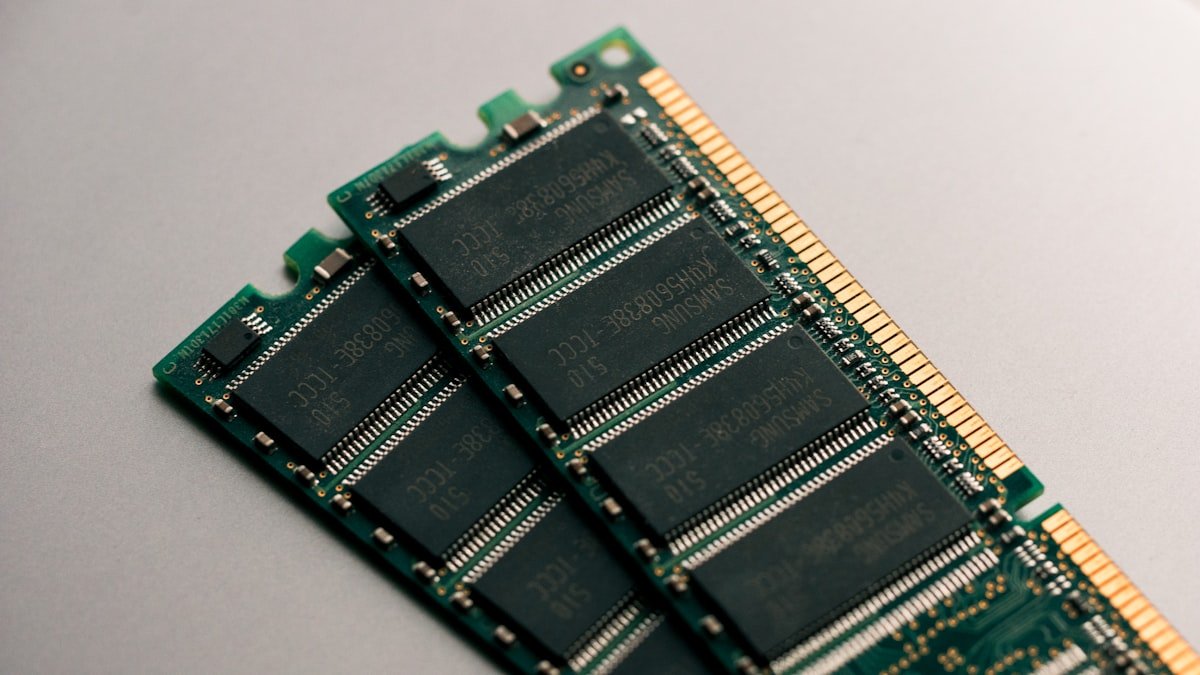
Acer Aspire’s RAM story is simple: most older models (2023 and earlier) use DDR4, newest models (2024+) use DDR5. The two are physically incompatible — DDR4 and DDR5 use different slot connectors, and inserting a DDR4 stick into a DDR5 slot will not work. Always verify your model’s memory type before purchasing upgrades.
DDR4 Models
Aspire 3 A315-44, Aspire 5 A515-58, A515-57, and Aspire 7 A715-76G ship with DDR4-3200 memory. Factory configurations are typically 8GB or 16GB. To upgrade, you buy replacement DDR4-3200 SO-DIMM sticks and install them into the two available slots on the bottom panel (10-minute job, no soldering required).
Important note for Aspire 3 A315-58: This older model has only 1x SO-DIMM slot (with 1x soldered module). Maximum upgradeable capacity is 16GB total (8GB soldered + 8GB SO-DIMM). Avoid this model if you need 32GB.
Recommended upgrade path for DDR4 Aspire 5 / 7:
- 8GB base → 16GB (add one 8GB stick, keep base stick)
- 8GB base → 24GB (add one 16GB stick, keep base stick)
- 16GB base → 32GB (replace both sticks with 16GB modules)
Best DDR4-3200 SO-DIMM options for Aspire:
- Corsair Vengeance DDR4-3200 SO-DIMM (reliable, 16GB sticks ~£25-35, tight timings)
- Kingston Fury Impact DDR4-3200 (gaming-tuned, excellent stability)
- G.Skill Ripjaws DDR4-3200 (budget-friendly, ~£20-25)
- Crucial DDR4-3200 (high reliability, OEM-grade)
DDR5 Models (2024+)
There is no Acer model called the “Aspire 5 A555”, and none called the “Aspire 3 A355”. Acer’s 15-inch Aspire 5 codes are A515-xx (A517-xx at 17 inches) and the Aspire 3 uses A315-xx. The distinction matters more than the marketing name does, because SKUs sold as the same “Aspire 5 15” differ internally: Acer’s tech specs list the A515-58GM with DDR4 and a 32GB maximum, and the A515-58M with LPDDR5 — soldered, capped at 32GB, with no SO-DIMM slot at all. Read the code on the underside of the machine before buying any memory; on an LPDDR5 SKU there is nothing to fit.
Upgrade path for an Aspire that genuinely has two DDR5 SO-DIMM slots — confirm yours does before ordering:
- 8GB in one slot → add a 24GB module for 32GB total, or fit two 16GB modules for 32GB
- 16GB in one slot → add a 32GB module for 48GB, or a 48GB module for 64GB. Two 48GB modules come to 96GB, not 64GB — and Acer does not specify any Aspire that high, so check the “maximum supported system memory” figure on Acer’s tech-spec page for your exact model code first.
Best DDR5-5600 SO-DIMM options:
- Corsair Vengeance DDR5 SO-DIMM (16GB-48GB, stable in Aspire machines, ~£50-150)
- Kingston Fury Beast DDR5 SO-DIMM (competitive pricing, good stability)
- SK Hynix DDR5 (high compatibility, OEM module)
How Much RAM Do You Actually Need?
General office work (Aspire 3): 8GB is sufficient for email, Word/Excel, web browsing, and light streaming. 16GB future-proofs you for 3-4 years.
Home office + multitasking (Aspire 5): 16GB is the sweet spot in 2024. If you run Chrome with 20+ tabs, Zoom, and Office simultaneously, 16GB keeps everything smooth. 24GB-32GB is ideal if you also use Adobe Lightroom or other memory-hungry applications.
Light gaming + content creation (Aspire 7): 24GB-32GB. The Aspire 7 is marketed as budget-capable gaming; modern AAA games eat 12-16GB VRAM+ system RAM. Adding content creation (photo editing in Lightroom, basic video editing) pushes you to 32GB minimum.
Professional use (video editing, 3D rendering): 48GB-64GB. The Aspire line does not reach that. Acer specifies a 32GB maximum on the Aspire 5 codes we have checked (A515-58GM on DDR4, A515-58M on soldered LPDDR5), so if you need more than 32GB, an Aspire is the wrong machine rather than the wrong configuration.
SSD & Storage Upgrades
Aspire storage configurations vary by model. Aspire 3 typically ships with a single M.2 2280 NVMe slot. Aspire 5 and 7 both include two M.2 2280 NVMe slots, supporting Gen3 (4,000 MB/s) and Gen4 (7,000+ MB/s) drives. Most Aspire machines ship with a single 512GB or 1TB NVMe drive, leaving one slot empty and ready for expansion.
Why Add a Second SSD?
Storage fills quickly: OS takes 30-40GB, Microsoft Office another 5GB, and modern games range from 60-150GB each. If you need 3-5 games installed at once, you’ll run out of space fast. A second SSD is one of the most cost-effective upgrades (£50-120 for 1-2TB of fast storage) and dramatically improves real-world usability.
Recommended M.2 2280 NVMe SSDs for Aspire
| Drive | Type | Capacity | Speed | Price (UK)* | Best For |
|---|---|---|---|---|---|
| Samsung 970 EVO Plus | Gen3 (PCIe 3.0 ×4) | 250GB-2TB | 3,500 MB/s read | £30-80 | Reliable, good value, widely available |
| WD Blue SN570 | Gen3 (PCIe 3.0 ×4) | 250GB-2TB | 3,500 MB/s read | £20-60 | Budget-friendly, excellent stability |
| Kingston NV2 | Gen4 (PCIe 4.0 ×4) | 256GB-2TB | 3,500 MB/s read / 2,800 write | £15-50 | Ultra-budget overflow storage |
| Crucial P5 Plus | Gen4 | 500GB-2TB | 6,600 MB/s | £40-120 | Balanced performance and value |
| Sabrent Rocket 4 Plus | Gen4 (PCIe 4.0 ×4, M.2 2280) | Check listing | Gen 4 class — see Sabrent’s spec for your capacity | Check current price | High performance. Do not confuse it with the Sabrent Rocket Nano, which is an external USB-C drive rated to about 1,000 MB/s and cannot be fitted inside a laptop |
Recommendation for Aspire 5 / 7: Keep your factory drive in slot 1 (usually 512GB-1TB). Add a 1TB Crucial P5 Plus or Sabrent Rocket 4 Plus in slot 2 — both are internal M.2 2280 modules. Total cost: £40-60 for 1.5-2TB total storage. This setup gives you OS + primary apps on the first drive, and games/documents on the second.
How to Install an M.2 NVMe SSD (5-Minute Process)
- Shut down and unplug your Aspire laptop
- Remove the bottom panel (typically 5-8 Phillips screws)
- Locate the empty M.2 slot (look for the notch without a drive installed)
- Insert the NVMe drive at a 30° angle into the slot
- Press down firmly until the drive is level with the slot
- Secure with the tiny Phillips screw (usually included in the drive packaging)
- Replace the bottom panel and screw it back on
- Boot up; Windows detates the new drive automatically
Power Delivery & Charger Specifications
Acer Aspire chargers vary by model. Most current Aspire models use USB-C Power Delivery, which is a positive — USB-C chargers are standardized and interchangeable across brands. However, wattage matters: using an underpowered charger will slow-charge and may prevent full performance under load.
Charger Reference by Aspire Model
- Aspire 3 (A315): 45W USB-C Power Delivery (standard, compact charger)
- Aspire 5 (A515): 65W USB-C Power Delivery (balanced wattage)
- Aspire 7 (A715): 90W USB-C Power Delivery (required for gaming performance)
- Aspire Vero (AV15): 45W USB-C Power Delivery (eco-conscious design, smaller charger)
Can you mix chargers? Technically, yes — USB-C PD is standardized. A 65W charger will work on an Aspire 3 (which needs only 45W). However, a 45W charger on an Aspire 7 will only provide partial power and slow charging, reducing gaming performance. Always match wattage or higher.
Replacement chargers: Official Acer chargers cost £35-70. Third-party USB-C 90W PD chargers (from brands like Anker, Baseus, or Lenovo) work well and often cost less (£25-45). Ensure any third-party charger has a safety certification (CE, FCC).
Complete Upgrade Examples & Cost Estimates
Budget Upgrade (Aspire 5 A515-57, 2022):
- Add 16GB DDR4-3200 SO-DIMM: £25-30
- Add 1TB Crucial P5 Plus: £40-50
- Total cost: £65-80 | New capacity: 24GB RAM + 2TB SSD
Performance Upgrade (Aspire 7 A715-76G, 2024):
- Add 16GB DDR4-3200 SO-DIMM: £25-30
- Add a 2TB internal M.2 2280 NVMe drive such as the Sabrent Rocket 4 Plus or Crucial P5 Plus: £70-90 — note the Sabrent Rocket Nano is an external USB-C drive and will not fit inside the laptop
- Total cost: £95-120 | New capacity: 32GB RAM + 3TB SSD
Maximum practical upgrade (Aspire 5 with two DDR4 or DDR5 SO-DIMM slots):
- Fit two 16GB modules for 32GB — Acer’s stated ceiling on the Aspire 5 models we checked: £60-90
- Add a 2TB Crucial P5 Plus Gen4: £80-100
- Total cost: £140-190 | New capacity: 32GB RAM + up to 3TB SSD
If your machine is an A515-58M, the memory is soldered LPDDR5 and only the SSD is upgradeable.
Common Upgrade Mistakes to Avoid
- Mixing DDR4 and DDR5: They use different slot connectors. DDR4 will not fit in DDR5 slots. Always verify your model’s memory type before purchasing.
- Buying SATA SSDs: Aspire uses M.2 NVMe only. Avoid 2.5″ SATA SSDs — they’re obsolete and incompatible with Aspire laptops.
- Assuming all Aspire 3 models are the same: Older A315-58 has only 1 SO-DIMM slot (soldered). Newer A315-44 has 2 SO-DIMM slots. Check your specific model.
- Using an underpowered charger: A 45W charger on an Aspire 7 will cause slow charging and reduced gaming performance. Match wattage.
- Ignoring thermal throttling: Adding RAM/SSD won’t improve thermals, but Aspire laptops rarely thermal-throttle. If you notice it, dust and thermal paste maintenance may help.
When NOT to Upgrade
If your Aspire is 5+ years old or showing signs of hardware failure (cracked chassis, keyboard issues, non-responsive trackpad, or constant blue-screens), prioritize repair or replacement over upgrades. Spending £100+ on RAM/SSD for a laptop with a failing motherboard is poor investment.
Similarly, if performance is limited by CPU (e.g., you’re hitting 100% CPU usage while RAM remains at 20-30%), upgrading RAM won’t help. You’d benefit more from a newer Aspire model or a different product line instead.
Recommended Products
These are the products we recommend based on this guide. All links go to Amazon where you can check current prices and availability.
| Product | Why We Recommend It | Amazon |
|---|---|---|
| Corsair Vengeance DDR4 SO-DIMM 32GB (2×16GB) 3200MHz | Best overall DDR4 upgrade kit | View on Amazon |
| Kingston Fury Impact DDR4 SO-DIMM 32GB (2×16GB) 3200MHz | Reliable alternative with tight latency | View on Amazon |
| Corsair Vengeance DDR5 SO-DIMM 32GB (2×16GB) 5600MHz | Top-rated DDR5 kit for gaming & productivity | View on Amazon |
| Kingston Fury Impact DDR5 SO-DIMM 32GB (2×16GB) 5600MHz | Excellent DDR5 alternative with XMP support | View on Amazon |
| Samsung 990 Pro 2TB NVMe M.2 2280 | Fastest consumer NVMe — ideal for gaming & editing | View on Amazon |
| WD Black SN850X 2TB NVMe | Excellent Gen4 speed with heatsink option | View on Amazon |
| Crucial P5 Plus 1TB NVMe | Great value Gen4 SSD | View on Amazon |
| Kingston NV2 1TB NVMe | Budget-friendly with solid reliability | View on Amazon |
Prices and availability may vary. As an Amazon Associate, we earn from qualifying purchases.
Related Acer Upgrade Guides
- Best RAM for Acer Laptops 2026
- Acer TravelMate Spin P4 TMP414RN-53 (2023) RAM & SSD Upgrade Guide (2023)
- Acer TravelMate P6 TMP614-53 (2023) RAM & SSD Upgrade Guide (2023)
- Acer TravelMate P4 TMP416-52 (2024) RAM & SSD Upgrade Guide (2024)
- Acer TravelMate P4 TMP414-52 (2023) RAM & SSD Upgrade Guide (2023)
- Acer Upgrade Guide
Not sure what fits? Use our free Compatibility Checker covering 3,195+ models.
Helpful Guides
Related Resources
- Laptop Upgrade Compatibility Checker — Check RAM, SSD & charger compatibility for 3,195+ models
- RAM Compatibility Guide — DDR4, DDR5 & LPDDR5 explained
- SSD Compatibility Guide — NVMe, SATA & M.2 sizes
- Charger Compatibility Guide — USB-C, Power Delivery & GaN
- Docking Station Compatibility Guide — Thunderbolt, USB-C & DisplayLink
Frequently Asked Questions
Can I upgrade RAM on all Acer Aspire models?
No — check the full model code first. The Aspire 3 A315-58 has a single SO-DIMM slot with a 16GB maximum, and the Aspire 5 A515-58M has LPDDR5 soldered to the board with no slot at all, so nothing can be added to it. Models that do have two SO-DIMM slots, including the A515-58GM, accept up to the 32GB maximum Acer specifies. The compatibility table above lists each model.
What’s the maximum RAM for an Acer Aspire laptop?
DDR4 Aspire models (3, 5, 7) max out at 32GB (2x 16GB SO-DIMM sticks). There is no Acer model called the A555 — the 15-inch Aspire 5 uses A515-xx codes. Acer’s tech specs list a 32GB maximum on both the DDR4 A515-58GM and the LPDDR5 A515-58M, and on the A515-58M the memory is soldered, so it cannot be upgraded at all. Check your exact model code before buying.
How many SSD slots does the Aspire 5 have?
It depends on the SKU. Several Aspire 5 models have two M.2 2280 NVMe slots, with the factory drive in slot 1 and slot 2 empty and ready for expansion, but others ship with a single slot. Check the model code against the table above before buying a second drive. Installation itself takes under five minutes.
What’s the difference between Aspire 5 and Aspire 7?
Aspire 5 is a mid-range workhorse (15.6″, 65W charger, no dedicated GPU on budget configs). Aspire 7 is gaming-focused (16″, 90W charger, optional RTX GPU, better cooling). Both have 2 RAM slots and 2 SSD slots.
Can I use a 65W charger on my Aspire 7?
Not for gaming. The Aspire 7 ships with a 90W USB-C Power Delivery adapter. A 65W charger will still charge the machine and is fine for light use, but under sustained gaming load the system can draw more than the charger supplies, so it charges slowly or drains while plugged in and the CPU and GPU throttle to stay within budget. Use the 90W adapter for gaming.
Do I need to remove the keyboard to upgrade RAM?
No. RAM and SSD slots are accessible via the removable bottom panel. You never need to disassemble the keyboard. Most Aspire upgrades take 5-10 minutes with a Phillips screwdriver.
Popular Brand Upgrade Guides
- Dell Laptop Upgrades
- Lenovo Laptop Upgrades
- HP Laptop Upgrades
- ASUS Laptop Upgrades
- Acer Laptop Upgrades
- MSI Laptop Upgrades
Recommended upgrades
As an Amazon Associate we earn from qualifying purchases. Prices & availability shown on Amazon.
USB-C chargers (only for laptops that charge over USB-C — match or exceed your original adapter wattage)
Free download: The 2026 Brand-by-Brand Laptop Upgradeability Matrix
See at a glance which laptop brands still let you upgrade RAM, SSD and battery — and which have soldered it shut. Get the PDF instantly.
*Indicative UK street prices, shown for guidance only. These are not live Amazon prices and change frequently — check the current price on Amazon before buying.