
Affiliate disclosure: this page contains affiliate links — if you buy through them we may earn a commission at no extra cost to you. As an Amazon Associate we earn from qualifying purchases.
Huawei MateBook laptops are premium machines designed for performance, elegance, and seamless ecosystem integration. However, they follow a philosophy opposite to gaming laptops: soldered RAM for maximum efficiency, but user-replaceable SSDs for practical upgrades. This guide covers what you can upgrade in MateBook X Pro, 14s, and 16s models — and what you cannot.
The short version: You cannot upgrade RAM in any MateBook — it’s soldered for thinness and efficiency. The SSD is always upgradeable. Choose your RAM at purchase, plan for SSD upgrades later.
MateBook Series Compatibility Table
| Model | RAM Type | Max RAM | Upgradeable? | SSD Type | Charger | Thunderbolt |
|---|---|---|---|---|---|---|
| MateBook X Pro | LPDDR5X | 16GB | No (soldered) | M.2 2280 NVMe | 90W USB-C PD | TB4 |
| MateBook 14s | LPDDR5X | 16GB | No (soldered) | M.2 2280 NVMe | 65W USB-C PD | TB4 |
| MateBook 16s | LPDDR5X | 16GB | No (soldered) | M.2 2280 NVMe | 90W USB-C PD | TB4 |
Understanding Soldered RAM
All Huawei MateBooks feature soldered LPDDR5X memory bonded directly to the motherboard. This design choice enables three critical benefits for MateBook laptops:
- Ultra-thin chassis: No SO-DIMM slots or sockets required, saving 2–3mm of thickness
- Superior power efficiency: Direct solder connections reduce current draw, extending battery life 10–15% over upgradeable designs
- Peak performance: Reduced signal latency between CPU and RAM for faster responsiveness
The trade-off: Zero RAM upgrade flexibility. You must choose your RAM capacity (16GB is the only current option) at purchase. If 16GB proves insufficient after 2–3 years, you must buy a new laptop.
Who should buy MateBook? Users with stable, predictable workloads who prioritize battery life and thinness. If you plan to game, stream, or edit 4K video intensively, a laptop with upgradeable RAM (Dell XPS 15, ASUS VivoBook, Lenovo ThinkPad) is a better long-term choice.
MateBook X Pro — Ultrabook Excellence
The MateBook X Pro is Huawei’s flagship ultrabook for executive professionals and productivity-focused power users. At just 1.34kg and 13.9mm thick, it ranks among the world’s thinnest premium laptops.
Key Specs & Upgrade Potential
- RAM: 16GB LPDDR5X (soldered only)
- Storage: 512GB or 1TB M.2 2280 NVMe (user-replaceable)
- Charger: 90W USB-C PD
- Display: 14.2-inch OLED (2880×1800)
- Processor: Intel Core Ultra 7 or 9
- Weight: 1.34kg (world’s lightest premium laptop)
What you can upgrade: Only the SSD. If your X Pro shipped with 512GB, upgrade to 1TB or 2TB for media, project files, and software libraries. Upgrading is straightforward — remove bottom panel (T5 Torx), unscrew the M.2 standoff, swap the drive.
What you cannot upgrade: RAM. The X Pro is sold with exactly 16GB soldered LPDDR5X. It’s sufficient for web browsing, office work, and light video editing, but tight for professional 4K work or heavy multitasking.
Best for: Business professionals, traveling executives, and minimalists who value ultraportability above all.
MateBook 14s — Balanced Mainstream
The MateBook 14s is Huawei’s mainstream premium consumer laptop — smaller and lighter than the 16s but with strong performance for office and creative work.
Key Specs & Upgrade Potential
- RAM: 16GB LPDDR5X (soldered only)
- Storage: 512GB M.2 2280 NVMe (user-replaceable)
- Charger: 65W USB-C PD
- Display: 14-inch OLED (2880×1920)
- Processor: Intel Core Ultra 7
- Weight: 1.49kg
Upgrade path: Storage only. 512GB base storage fills up quickly with creative projects. Upgrading to 1TB or 2TB is practical after 6–12 months of regular use. The 65W charger is adequate for office work but may throttle during sustained video export. Consider a 90W USB-C PD charger from Anker for backup charging at full performance.
Best for: Students, office workers, and creative hobbyists seeking a thin, light, efficient daily driver.
MateBook 16s — Creator’s Choice
The MateBook 16s steps to 16 inches without the “X Pro” premium positioning, offering professional creatives the screen real estate they need without the £3000+ ultrabook markup.
Key Specs & Upgrade Potential
- RAM: 16GB LPDDR5X (soldered only)
- Storage: 512GB or 1TB M.2 2280 NVMe (user-replaceable)
- Charger: 90W USB-C PD
- Display: 16-inch OLED (2560×1600)
- Processor: Intel Core Ultra 9 (high-end option)
- Optional GPU: NVIDIA RTX 4060 (some regions)
- Weight: 1.88kg
For video editors: The 16-inch OLED display is colour-accurate and responsive. 16GB RAM is tight for 4K timeline editing — expect memory pressure with multiple video tracks and effects. The 90W charger sustains video rendering without throttling. Upgrade the SSD to 2TB immediately for video scratch disk and project files.
Best upgrade path: Buy MateBook 16s with RTX 4060 GPU if available in your region. Replace the 512GB SSD with 2TB within 2–3 months of purchase. Add an external Thunderbolt SSD (via TB4 port) for media cache and project scratch space — this is often more practical than relying on internal SSD alone.
SSD Upgrade Guide — The Only Practical Upgrade
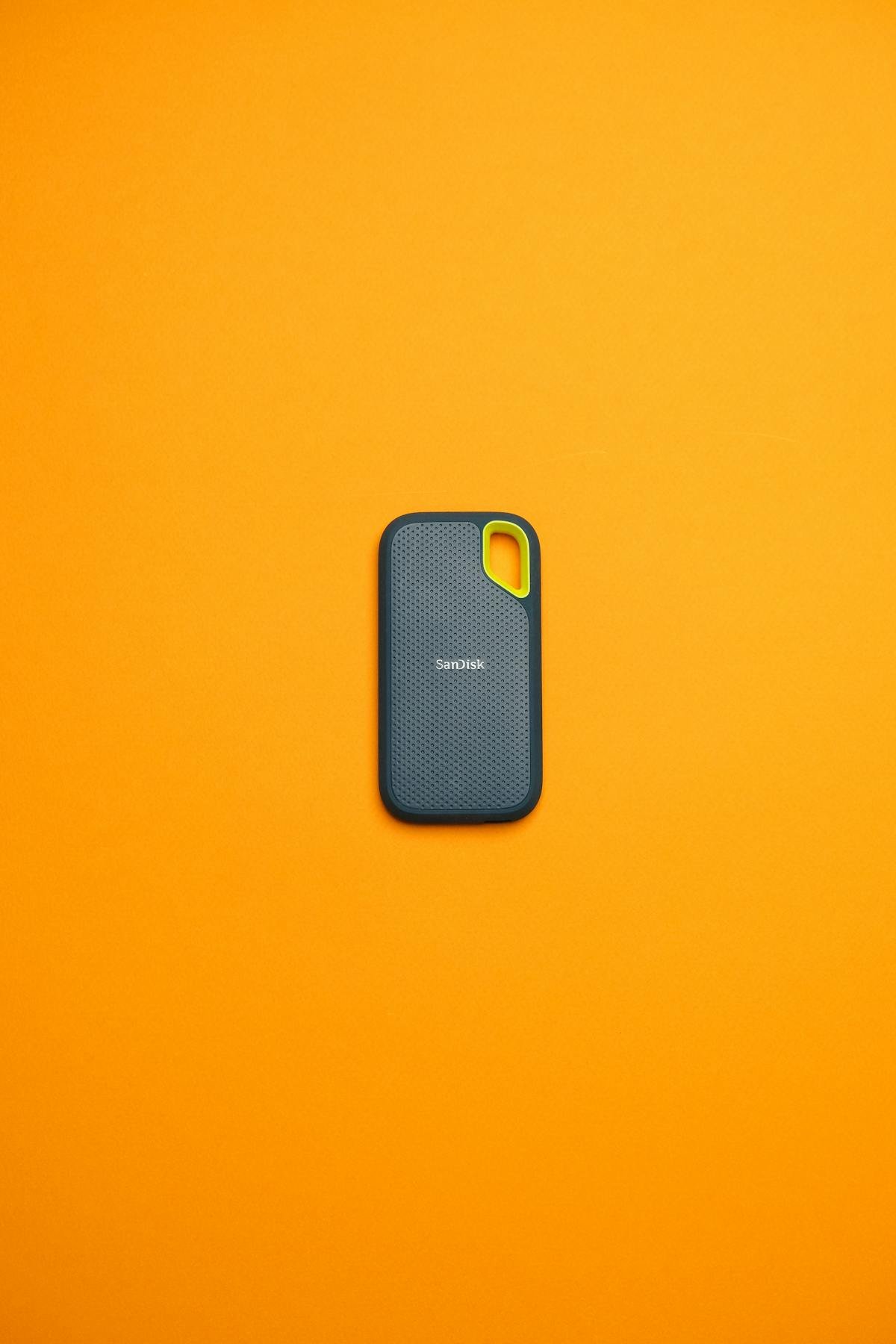
Recommended SSDs by Use Case
| Use Case | Recommended SSD | Capacity | Price Range* | Why |
|---|---|---|---|---|
| Office/Web browsing | Crucial P5 Plus | 512GB–1TB | £45–60 | Budget option, good performance |
| Light creative work | Samsung 990 EVO | 1TB | £50–70 | Good balance of speed and cost |
| Video editing (scratch disk) | Samsung 990 Pro | 2TB | £120–150 | Fast Gen 5 performance for real-time editing |
| Professional creators | WD Black SN850X | 4TB | £250–300 | Maximum capacity, sustained performance |
How to Replace Your MateBook SSD
- Power off completely and unplug charger
- Remove bottom panel (T5 Torx screws, usually 6–8 screws)
- Locate the M.2 slot (typically near the battery)
- Gently unscrew the single M.2 standoff and remove existing SSD
- Insert new SSD at a 30-degree angle into the slot
- Press down and screw the standoff to secure
- Replace bottom panel
Clone vs. fresh install: If upgrading (not adding), clone your old SSD to the new one before opening the laptop. This preserves your Windows installation and app settings. Use free tools like Macrium Reflect or EaseUS Todo Backup.
Charger Compatibility & USB-C PD Ecosystem
MateBooks use USB-C Power Delivery with these specifications:
- MateBook X Pro: 90W USB-C PD (original recommended, 65W minimum)
- MateBook 14s: 65W USB-C PD (adequate for light use, upgrade to 90W for sustained work)
- MateBook 16s: 90W USB-C PD (sufficient for video editing and content creation)
Compatible Third-Party Chargers
- Anker 715 Charger: 65W USB-C PD (backup for 14s, works with all models)
- Ugreen Nexode Pro 100W: 100W USB-C PD (covers X Pro and 16s with headroom)
- Anker 165W GaN: 165W USB-C PD (overkill but charges multiple devices)
Important note: Huawei chargers include proprietary firmware. Third-party chargers charge slower but are still safe and convenient. If your MateBook is your daily work machine, keep the original charger as primary and source a third-party 90W+ as a travel/backup option.
Thunderbolt 4 & Docking Options
All MateBook models include Thunderbolt 4 support (typically 2 ports). This enables:
- TB4 docks: Anker Thunderbolt 4 Hub, CalDigit TS4, Plugable Thunderbolt 4 Universal Hub
- External Thunderbolt SSDs: Samsung Portable SSD X5, LaCie Rugged RAID Thunderbolt
- Multi-monitor setups: Daisy-chain up to 6 Thunderbolt devices, support 2–3 external displays
For MateBook 16s creators: A TB4 external SSD is often more practical than upgrading the internal drive. Connect a 2TB external Thunderbolt SSD for fast video scratch disk and project files, leaving your internal 512GB–1TB for OS and applications.
Choosing Between MateBook Models
| Factor | X Pro | 14s | 16s |
|---|---|---|---|
| Best for | Ultraportability | Daily productivity | Creative professionals |
| Weight | 1.34kg | 1.49kg | 1.88kg |
| Screen | 14.2″ OLED | 14″ OLED | 16″ OLED |
| Max RAM | 16GB | 16GB | 16GB |
| Charger | 90W | 65W | 90W |
| Thunderbolt 4 | Yes | Yes | Yes |
| Best SSD upgrade | 1TB | 1TB | 2TB |
Frequently Asked Questions
Can I upgrade the RAM in any Huawei MateBook?
No. All current MateBooks have soldered LPDDR5X RAM. You must choose your RAM capacity (16GB only) at purchase. There are no exceptions — the RAM cannot be replaced under any circumstances.
What happens if I outgrow 16GB RAM?
You have two options: (1) Use external Thunderbolt RAM disks (expensive, impractical) or (2) Sell your MateBook and buy a new laptop with better specs. Most MateBooks remain useful for 3–5 years before RAM becomes a true limiting factor, especially if you upgrade the SSD regularly.
Is MateBook 16s good for 4K video editing?
Partially. The 16-inch OLED display is excellent, Thunderbolt 4 provides fast external storage, and the RTX 4060 GPU (if available) accelerates rendering. However, 16GB RAM is the bottleneck — expect stutters on complex timelines with multiple effects. Pair it with a 2TB external Thunderbolt SSD for media cache, and you’ll manage light 4K work comfortably.
How long do MateBooks last with their soldered RAM?
Most users find 16GB sufficient for 3–5 years of normal use (office work, web, light video editing). Heavy multitasking, streaming, and professional creative work may hit the 16GB ceiling after 2–3 years. Battery degradation and thermal paste refresh become issues after 4 years regardless of RAM.
Should I buy a MateBook if I plan to upgrade RAM later?
No. If RAM upgradeability is important to you, a MateBook is not the right choice. Consider Dell XPS 15 (DDR5 SO-DIMM), ASUS VivoBook (DDR5 SO-DIMM), or Lenovo ThinkPad E-series (always upgradeable). MateBooks are best for users with stable workloads who prioritize thinness, efficiency, and battery life.
Can I access individual MateBook model pages?
Yes. For detailed specifications on individual models, visit:
Recommended Products
These are the products we recommend based on this guide. All links go to Amazon where you can check current prices and availability.
| Product | Why We Recommend It | Amazon |
|---|---|---|
| Corsair Vengeance DDR5 SO-DIMM 32GB (2×16GB) 5600MHz | Top-rated DDR5 kit for gaming & productivity | View on Amazon |
| Kingston Fury Impact DDR5 SO-DIMM 32GB (2×16GB) 5600MHz | Excellent DDR5 alternative with XMP support | View on Amazon |
| Crucial DDR5 SO-DIMM 16GB 5600MHz | Affordable single-stick DDR5 | View on Amazon |
| G.Skill Ripjaws DDR5 SO-DIMM 32GB 5600MHz | High performance DDR5 for enthusiasts | View on Amazon |
| Samsung 990 Pro 2TB NVMe M.2 2280 | Fastest consumer NVMe — ideal for gaming & editing | View on Amazon |
| WD Black SN850X 2TB NVMe | Excellent Gen4 speed with heatsink option | View on Amazon |
| Crucial P5 Plus 1TB NVMe | Great value Gen4 SSD | View on Amazon |
| Kingston NV2 1TB NVMe | Budget-friendly with solid reliability | View on Amazon |
Prices and availability may vary. As an Amazon Associate, we earn from qualifying purchases.
Related Huawei Upgrade Guides
- Huawei MateBook D 15 (2023)
- Huawei MateBook D 14 (2023)
- Huawei MateBook D 15 (2024)
- Huawei MateBook D 14 (2024)
- Huawei MateBook 14s (2023) RAM & SSD Upgrade Guide
- Huawei Upgrade Guide
Not sure what fits? Use our free Compatibility Checker covering 3,195+ models.
Helpful Guides
Related Resources
- Laptop Upgrade Compatibility Checker — Check RAM, SSD & charger compatibility for 3,195+ models
- RAM Compatibility Guide — DDR4, DDR5 & LPDDR5 explained
- SSD Compatibility Guide — NVMe, SATA & M.2 sizes
- Charger Compatibility Guide — USB-C, Power Delivery & GaN
- Docking Station Compatibility Guide — Thunderbolt, USB-C & DisplayLink
Popular Brand Upgrade Guides
- Dell Laptop Upgrades
- Lenovo Laptop Upgrades
- HP Laptop Upgrades
- ASUS Laptop Upgrades
- Acer Laptop Upgrades
- MSI Laptop Upgrades
Recommended upgrades
As an Amazon Associate we earn from qualifying purchases. Prices & availability shown on Amazon.
For laptops and mini PCs that use DDR5 SO-DIMM
For laptops and mini PCs that use DDR4 SO-DIMM
M.2 2280 NVMe SSDs
*Indicative UK street prices, shown for guidance only. These are not live Amazon prices and change frequently — check the current price on Amazon before buying.