Affiliate disclosure: this page contains affiliate links — if you buy through them we may earn a commission at no extra cost to you. As an Amazon Associate we earn from qualifying purchases.
Cloning your existing hard drive to an SSD is the single biggest performance upgrade you can make to an older PC. Your operating system, applications, and files transfer intact — no reinstallation needed. This guide covers the complete process.
What You Need
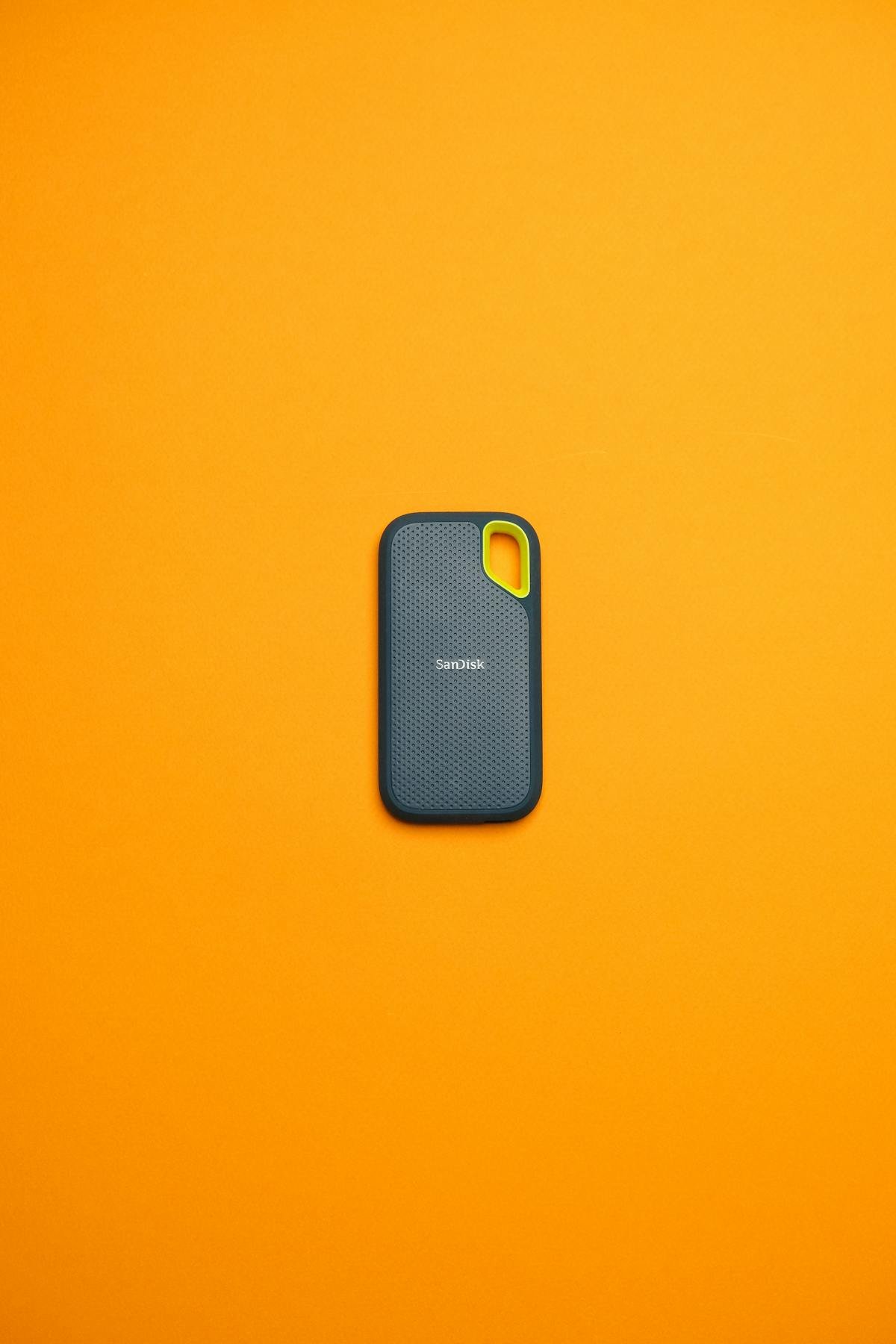
A new SSD (SATA or NVMe, matching your system), a USB-to-SATA adapter or external enclosure (if cloning to a SATA SSD externally), cloning software (Macrium Reflect Free, Samsung Data Migration, or Clonezilla), and a USB drive for creating rescue media. If installing an NVMe SSD internally, you can clone after installing both drives.
Prepare Your Source Drive
Before cloning, clean up your existing drive to reduce clone time: empty the Recycle Bin, run Disk Cleanup, uninstall unused programs, and clear browser cache. If your current drive is larger than your new SSD, you may need to shrink partitions — most cloning software handles this automatically.
Cloning with Macrium Reflect
1. Install Macrium Reflect Free and connect your new SSD. 2. Select your source drive (the old HDD). 3. Click “Clone this disk” and select the destination SSD. 4. Macrium will map partitions automatically — review and adjust if needed. 5. Click Clone and wait (typically 30-90 minutes depending on data volume). 6. Once complete, shut down, swap the drives, and boot from the SSD.
After Cloning
Verify the clone boots correctly, then enable TRIM support (usually automatic in Windows 10/11). Check that the SSD is running in AHCI mode in BIOS for optimal performance. If your SSD is larger than the old drive, extend the main partition using Disk Management to use the extra space.
Troubleshooting
If the clone does not boot: check BIOS boot order, ensure the clone completed without errors, try rebuilding the boot record using Windows Recovery. If the SSD is too small for all data, clone only the OS partition and move data files manually.
Frequently Asked Questions
Can I clone to a smaller SSD?
Yes, as long as your used data fits on the SSD. Most cloning tools resize partitions automatically.
Do I need to reinstall Windows after cloning?
No. A successful clone creates an exact copy — Windows boots normally with all your programs and settings intact.
Should I keep my old hard drive?
Yes, keep it as a backup for at least a month. You can also repurpose it as secondary storage.
Find Compatible Upgrades
Use our compatibility guides to find the right parts for your system.
RAM Guide SSD GuideRecommended upgrades
As an Amazon Associate we earn from qualifying purchases. Prices & availability shown on Amazon.
M.2 2280 NVMe SSDs
How we verify this guide
We cross-reference compatibility figures against manufacturer specifications where available, official service manuals, and the standards that govern fit — memory type and speed (DDR4 / DDR5 / LPDDR5), maximum supported capacity and slot count, SSD form factor and interface (M.2 2280, NVMe PCIe vs SATA, keying), and charger wattage and connector (USB-C Power Delivery, GaN). We’re explicit about soldered or non-upgradeable parts, prioritise primary sources over retailer listings, and re-verify the data on a regular cycle. More on our method →