Affiliate disclosure: this page contains affiliate links — if you buy through them we may earn a commission at no extra cost to you. As an Amazon Associate we earn from qualifying purchases.
ASUS ExpertBook B5 is the gold standard for business laptop upgradeability. While many modern ultrabooks lock memory and storage behind glued-down components, the ExpertBook B5 maintains exceptional user-service design — dual SO-DIMM RAM slots, dual M.2 NVMe bays, and accessible bottom panels on all models. This comprehensive guide covers every ExpertBook B5 generation (B5402 DDR4, B5404/B5602 DDR5) and B1 variants, showing you exactly which upgrades are possible, what parts to buy, installation procedures, and business-specific considerations.
Whether you own a B5402 (12th-gen, DDR4, 2022), B5404 (13th-gen, DDR5, 2023), B5602 (14th-gen HX, DDR5, 2024), or one of the smaller B1 business models, this series offers unmatched upgradeability in the professional laptop market. The B5 Flip, B1, and B9 models also feature user-replaceable components, though the ultralight B9 has some soldered RAM. We’ll cover each model’s exact upgrade potential, real-world performance impacts, and cost recommendations.
ASUS ExpertBook Model Overview — All Versions & Upgradability
ASUS’s ExpertBook lineup spans multiple tiers: B5 (premium 14-16″ business), B5 Flip (convertible 14″), B1 (compact 14″), and B9 (ultralight 13″). The following table covers all current and recent models with key specs and upgrade potential.
| Model & Year | Screen | Gen/CPU | RAM Type | Max RAM | RAM Slots | SSD Slots | Charger | Upgrade Score |
|---|---|---|---|---|---|---|---|---|
| B5 B5402CVA (2022) | 14″ | 12th-gen Intel P | DDR4 SO-DIMM | 64GB | 2x SO-DIMM | 2x M.2 2280 | 90W USB-C | 5/5 |
| B5 B5404CMA (2023) | 14″ | 13th-gen Intel P | DDR5 SO-DIMM | 96GB | 2x SO-DIMM | 2x M.2 2280 | 90W USB-C | 5/5 |
| B5 B5602CBA (2024) | 16″ | 14th-gen Intel HX | DDR5 SO-DIMM | 96GB | 2x SO-DIMM | 2x M.2 2280 | 130W USB-C | 5/5 |
| B5 Flip B5402FBA (2023) | 14″ | 12th-gen Intel P | DDR4 SO-DIMM | 64GB | 2x SO-DIMM | 2x M.2 2280 | 65W USB-C | 5/5 |
| B1 B1402CBA (2023) | 14″ | 13th-gen Intel P | DDR5 SO-DIMM | 96GB | 2x SO-DIMM | 2x M.2 2280 | 65W USB-C | 5/5 |
| B1 B1502CBA (2024) | 15″ | 14th-gen Intel P | DDR5 SO-DIMM | 96GB | 2x SO-DIMM | 2x M.2 2280 | 65W USB-C | 5/5 |
| B9 B9403CVA (2024) | 13″ | 13th-gen Intel P | DDR5 (soldered) | 32GB | Not upgradeable | 2x M.2 2230 | 45W USB-C | 2/5 |
Note: Upgrade scores reflect RAM accessibility and ease. B5/B1 models score 5/5 for excellent upgradeability. B9 scores 2/5 due to soldered RAM, though SSD is still user-replaceable.
RAM Upgrades — DDR4 vs DDR5 & Maximum Capacity
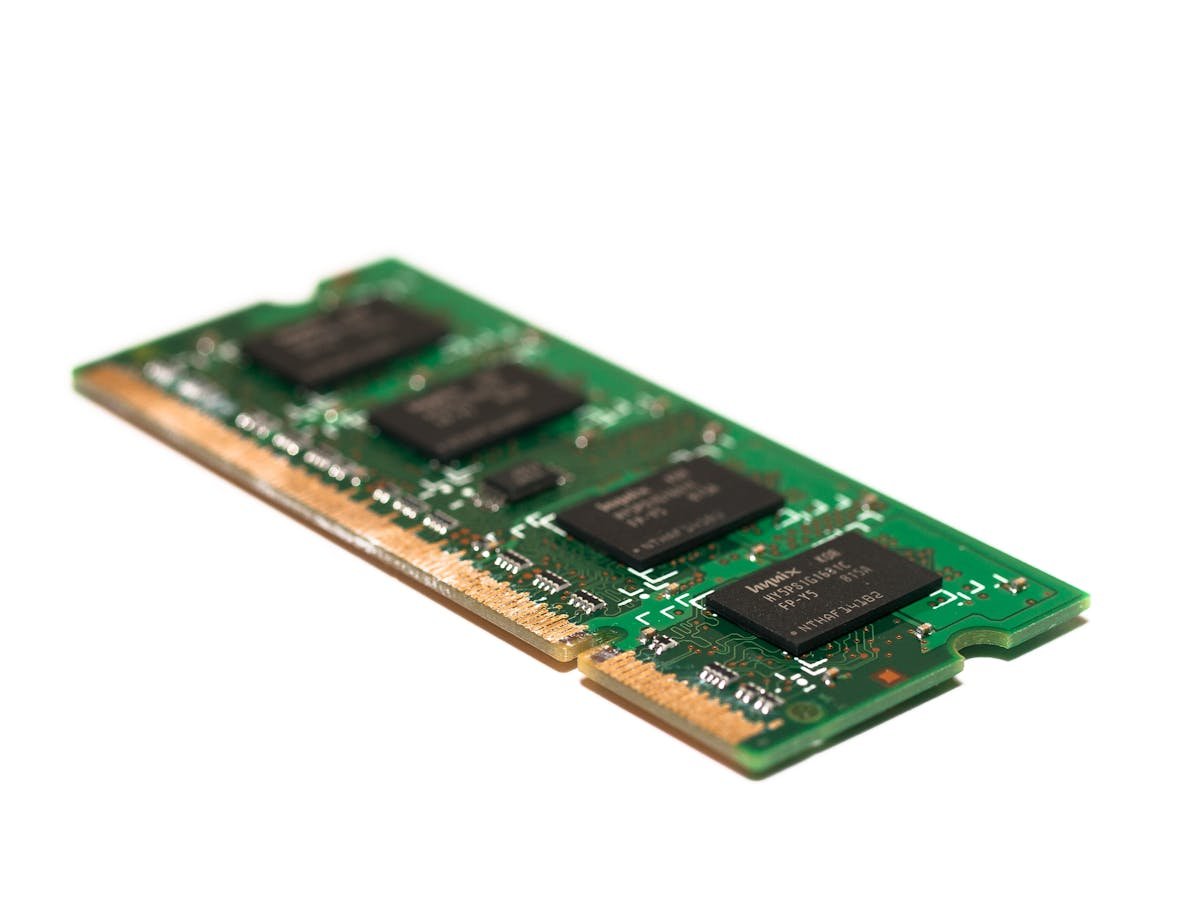
ExpertBook’s RAM evolution is straightforward: B5402 (2022) uses DDR4, all newer models (B5404, B5602, B1, B5 Flip) use DDR5. DDR5 is 15-20% faster than DDR4 and significantly more power-efficient, but the two are physically incompatible — DDR4 and DDR5 use different slot connectors.
DDR4 Model (B5402CVA — 2022 only)
The B5402 ships with DDR4-3200 memory, typically in 16GB or 32GB configurations. The laptop has two user-accessible SO-DIMM slots on the bottom panel. To upgrade, remove the two Phillips screws, slide the bottom panel off, and you have immediate access to both RAM modules. No heat shield removal required.
Recommended upgrade path for B5402:
- 16GB base → 32GB (add one 16GB DDR4-3200, keep base stick)
- 32GB base → 64GB (replace both sticks with 32GB modules)
Best DDR4-3200 SO-DIMM options for ExpertBook:
- Corsair Vengeance DDR4-3200 SO-DIMM (enterprise-grade reliability, 32GB sticks ~£60-80)
- Kingston Fury Impact DDR4-3200 (excellent stability, ASUS certified)
- SK Hynix DDR4-3200 (OEM-grade, widely used in business laptops)
DDR5 Models (B5404, B5602, B1, B5 Flip)
All newer ExpertBook models use DDR5-4800 or DDR5-5600 SO-DIMM, depending on generation. The B5404 and B1 B1402 use DDR5-4800. The newer B5602 and B1 B1502 use DDR5-5600. Both are compatible within their respective generations, though DDR5-5600 is slightly faster.
Like the B5402, RAM access is simple: remove the bottom panel and you have immediate access to two SO-DIMM slots. Maximum capacity is exceptional — up to 96GB (2x 48GB sticks) on all B5/B1 models. This makes the ExpertBook series ideal for power users doing video editing, software development, or data analysis.
Recommended upgrade path for DDR5 ExpertBook:
- 16GB base → 48GB (add one 32GB DDR5 stick, keep base 16GB stick)
- 32GB base → 96GB (replace both sticks with 48GB modules, or add one 64GB stick if single-slot)
Best DDR5-4800/5600 SO-DIMM options:
- Corsair Vengeance DDR5 SO-DIMM (16GB-48GB, enterprise stability, ~£50-180)
- Kingston Fury Beast DDR5 SO-DIMM (competitive pricing, excellent for business)
- SK Hynix DDR5 (OEM-grade modules, high reliability)
- Crucial DDR5 SO-DIMM (budget-friendly, good stability)
Special Case: B9 Ultralight (B9403CVA)
The ultra-portable B9 has a different story: its RAM is soldered directly to the motherboard and not user-upgradeable. Capacity is fixed at purchase time (32GB maximum). The SSD is still upgradeable (2x M.2 2230 slots), but you cannot expand RAM after purchase. If you need future RAM expansion, buy the B1 or B5 instead.
How Much RAM Do You Actually Need?
Office work + Zoom calls (B1, B5402): 16GB is ideal. Office 365, Zoom, Chrome with 10+ tabs, and Outlook all run smoothly at this capacity.
Software development + virtualization (B5404, B5602): 32GB minimum. Running a VM (VirtualBox, Docker, Hyper-V) alongside your IDE and development tools easily hits 20-28GB. 48GB future-proofs for 3-4 years.
Video editing + content creation (B5602 16″ models): 48GB-64GB. Premiere Pro, DaVinci Resolve, and Adobe After Effects are VRAM-hungry. 48GB gives you room for multiple applications and background tasks. 96GB is professional-grade and not overkill for serious creators.
Data analysis + machine learning (B5602): 64GB-96GB. Jupyter notebooks, TensorFlow, and large dataset processing benefit immensely from maximum RAM. The B5602’s 96GB ceiling is respectable for machine learning work on-the-go.
SSD & Storage Upgrades
All ExpertBook B5, B5 Flip, and B1 models feature two M.2 2280 NVMe slots, supporting both Gen3 (4,000 MB/s) and Gen4 (7,000+ MB/s) drives. The B9 ultralight uses smaller M.2 2230 slots. Most models ship with a single 512GB or 1TB drive in slot 1, leaving slot 2 empty and ready for expansion.
Why Add a Second SSD?
In business environments, storage needs grow: project files, client archives, video recordings of meetings, and backup drives all eat space quickly. A second SSD is valuable for partitioning work (OS + primary projects on slot 1, backups/archives on slot 2). This also improves performance — Windows can defragment/optimize separately, and you avoid putting all IO load on a single drive.
Recommended M.2 2280 NVMe SSDs for ExpertBook
| Drive | Type | Capacity | Speed | Price (UK)* | Best For |
|---|---|---|---|---|---|
| Samsung 980 Pro | Gen4 | 250GB-4TB | 7,100 MB/s | £90-350 | Premium reliability, best for video/large files |
| WD Black SN850X | Gen4 | 500GB-4TB | 7,100 MB/s | £85-340 | Excellent value, enterprise-grade |
| Crucial P5 Plus | Gen4 | 500GB-2TB | 6,600 MB/s | £45-120 | Balanced cost/performance, reliable |
| Sabrent Rocket 4 Plus | Gen4 | 500GB-8TB | 7,000 MB/s | £50-250 | High capacity options, generous warranty |
| SK Hynix P41 Platinum | Gen4 | 512GB-2TB | 7,100 MB/s | £60-150 | Excellent enterprise alternative to Samsung |
Recommendation for B5404 / B5602: Keep factory 1TB drive in slot 1. Add a 2TB Crucial P5 Plus or WD Black SN850X in slot 2. Total cost: £80-120 for 3TB total storage. This setup provides 1TB for OS/work, 2TB for archives/client projects.
How to Install an M.2 NVMe SSD (5-Minute Process)
- Shut down and unplug your ExpertBook
- Remove the bottom panel (typically 6-10 Phillips screws)
- Locate the empty M.2 2280 slot (look for the notch without a drive installed)
- Insert the NVMe drive at a 30° angle into the slot
- Press down firmly until the drive is level with the slot
- Secure with the tiny Phillips screw provided in the drive packaging
- Replace the bottom panel
- Boot up; Windows detects the new drive automatically
Power Delivery & Charger Specifications
ExpertBook chargers use standardized USB-C Power Delivery, making them compatible across brands. However, wattage varies by model and must match or exceed the laptop’s requirements.
Charger Reference by ExpertBook Model
- B5 B5402CVA (14″): 90W USB-C Power Delivery
- B5 B5404CMA (14″): 90W USB-C Power Delivery
- B5 B5602CBA (16″): 130W USB-C Power Delivery (larger screen, HX processor)
- B5 Flip B5402FBA (14″ convertible): 65W USB-C Power Delivery
- B1 B1402CBA / B1502CBA (14-15″): 65W USB-C Power Delivery
- B9 B9403CVA (13″ ultralight): 45W USB-C Power Delivery
Can you share chargers? Yes — USB-C PD is standardized. A 130W charger will work on any ExpertBook model. However, using an underpowered charger (45W on a B5602) will slow-charge and reduce performance. Always match wattage or use a higher-wattage charger.
Replacement chargers: Official ASUS ExpertBook chargers cost £40-80. Third-party USB-C PD chargers from brands like Anker, Baseus, or Lenovo work well (£25-50) and often include multiple USB ports. Always verify certification (CE, FCC).
Business-Specific Features & Security
MIL-STD-810H Durability
All ExpertBook B5 and B1 models meet or exceed military standard MIL-STD-810H for durability. This includes drop testing, thermal testing, and humidity resistance. In practical terms: your ExpertBook can survive a 90cm drop on concrete, operate in temperatures from -10°C to 50°C, and handle spills with sealed keyboards. This is genuine durability, not marketing.
TPM 2.0 Security & Windows Hello
All ExpertBook models include TPM 2.0 (Trusted Platform Module) for hardware-level security and Windows Hello facial recognition or fingerprint authentication. This protects your encryption keys and sensitive data at the hardware level, complementing Windows 10/11 security features.
Enterprise-Grade Keyboard
ExpertBook keyboards are rated for 20+ million keystrokes — double the typical consumer laptop. This matters if you’re typing 8 hours daily. The keys are also spill-resistant with sealed internals.
Complete Upgrade Examples & Cost Estimates
Developer Upgrade (B5404, 2023):
- Add 32GB DDR5-4800 SO-DIMM: £60-90
- Add 2TB WD Black SN850X: £80-100
- Total cost: £140-190 | New capacity: 48GB RAM + 3TB SSD
Video Editor Upgrade (B5602 16″, 2024):
- Add 48GB DDR5-5600 SO-DIMM: £100-140
- Add 4TB Samsung 980 Pro: £250-320
- Total cost: £350-460 | New capacity: 80GB RAM + 5TB SSD
Maximum Performance (B5602 16″):
- Replace stock RAM with 2x 48GB DDR5: £200-260
- Add 4TB WD Black SN850X: £220-280
- Total cost: £420-540 | New capacity: 96GB RAM + 5TB SSD
Common Upgrade Mistakes to Avoid
- Mixing DDR4 and DDR5: B5402 uses DDR4; B5404/B5602/B1 use DDR5. The connectors are different. Always verify your exact model before purchasing RAM.
- Buying SATA SSDs: ExpertBook uses M.2 NVMe only. Avoid 2.5″ SATA SSDs — they’re incompatible.
- Assuming B9 RAM is upgradeable: The B9 ultralight has soldered RAM. If you need future upgrades, buy a B1 or B5 instead.
- Forgetting about wattage: A 65W charger on a B5602 will slow-charge. Use 130W USB-C PD for the B5602.
- Over-specifying storage: For most business use, 1TB OS + 2TB backup is sufficient. Avoid 8TB second drives unless you’re archiving video/large media files.
When NOT to Upgrade
If your ExpertBook is 6+ years old or showing hardware failure (keyboard issues, non-responsive touchpad, or motherboard problems), prioritize repair or replacement over upgrades. ExpertBook laptops age well — a B5402 from 2022 is still a capable machine in 2026 — but once hardware fails, spending £300+ on RAM/SSD is poor investment.
Additionally, if your use case is primarily web browsing and email (even with multiple Chrome tabs), 16GB RAM is sufficient regardless of model. Upgrading beyond your actual workload provides no benefit.
Recommended Products
These are the products we recommend based on this guide. All links go to Amazon where you can check current prices and availability.
| Product | Why We Recommend It | Amazon |
|---|---|---|
| Corsair Vengeance DDR4 SO-DIMM 32GB (2×16GB) 3200MHz | Best overall DDR4 upgrade kit | View on Amazon |
| Kingston Fury Impact DDR4 SO-DIMM 32GB (2×16GB) 3200MHz | Reliable alternative with tight latency | View on Amazon |
| Corsair Vengeance DDR5 SO-DIMM 32GB (2×16GB) 5600MHz | Top-rated DDR5 kit for gaming & productivity | View on Amazon |
| Kingston Fury Impact DDR5 SO-DIMM 32GB (2×16GB) 5600MHz | Excellent DDR5 alternative with XMP support | View on Amazon |
| WD SN770M 1TB M.2 2230 NVMe | Best 2230 SSD for Dell, Surface, Steam Deck | View on Amazon |
| Sabrent Rocket 2230 1TB | Fast 2230 alternative | View on Amazon |
| Samsung PM991a 1TB 2230 | OEM-grade 2230 at good prices | View on Amazon |
| Samsung 990 Pro 2TB NVMe M.2 2280 | Fastest consumer NVMe — ideal for gaming & editing | View on Amazon |
Prices and availability may vary. As an Amazon Associate, we earn from qualifying purchases.
Related ASUS Upgrade Guides
- Best RAM for ASUS Laptops 2026
- ASUS ProArt StudioBook 16 OLED (2023) RAM & SSD Upgrade Guide (2023)
- ASUS ProArt StudioBook 16 OLED (2024) RAM & SSD Upgrade Guide (2024)
- ASUS ProArt StudioBook 16 OLED (2022) RAM & SSD Upgrade Guide (2022)
- ASUS ExpertBook B9 (2023) RAM & SSD Upgrade Guide (2023)
- ASUS Upgrade Guide
Not sure what fits? Use our free Compatibility Checker covering 3,195+ models.
Helpful Guides
Related Resources
- Laptop Upgrade Compatibility Checker — Check RAM, SSD & charger compatibility for 3,195+ models
- RAM Compatibility Guide — DDR4, DDR5 & LPDDR5 explained
- SSD Compatibility Guide — NVMe, SATA & M.2 sizes
- Charger Compatibility Guide — USB-C, Power Delivery & GaN
- Docking Station Compatibility Guide — Thunderbolt, USB-C & DisplayLink
Popular Brand Upgrade Guides
- Dell Laptop Upgrades
- Lenovo Laptop Upgrades
- HP Laptop Upgrades
- ASUS Laptop Upgrades
- Acer Laptop Upgrades
- MSI Laptop Upgrades
Recommended upgrades
As an Amazon Associate we earn from qualifying purchases. Prices & availability shown on Amazon.
USB-C chargers (only for laptops that charge over USB-C — match or exceed your original adapter wattage)
*Indicative UK street prices, shown for guidance only. These are not live Amazon prices and change frequently — check the current price on Amazon before buying.