
Affiliate disclosure: this page contains affiliate links — if you buy through them we may earn a commission at no extra cost to you. As an Amazon Associate we earn from qualifying purchases.
If you have bought RAM advertised as DDR4-3600 or DDR5-6000, it probably is not running at that speed out of the box. Most RAM ships at conservative JEDEC default speeds until you enable XMP (Intel) or EXPO (AMD) in your BIOS. This guide explains what these profiles are and how to activate them.
Why Your RAM Is Not Running at Full Speed
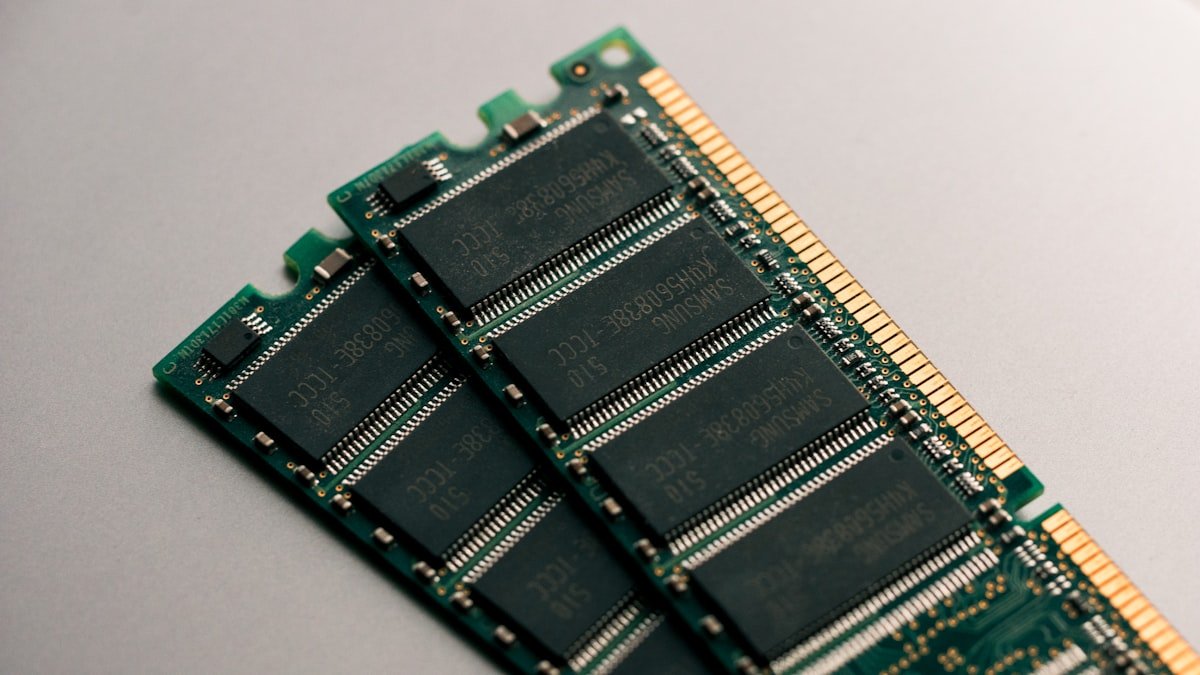
When you install new RAM, your system defaults to the JEDEC standard speed — the universally guaranteed baseline. For DDR4 this is typically 2133MHz or 2400MHz. For DDR5 it is 4800MHz. Your RAM modules store faster speed profiles in their SPD (Serial Presence Detect) chip, but these profiles need to be manually activated.
| RAM Type | JEDEC Default | Typical Advertised | Needs XMP/EXPO? |
|---|---|---|---|
| DDR4-3200 | 2133 MHz | 3200 MHz | Yes — enable for full speed |
| DDR4-3600 | 2133 MHz | 3600 MHz | Yes — enable for full speed |
| DDR5-5600 | 4800 MHz | 5600 MHz | Yes — enable for full speed |
| DDR5-6000 | 4800 MHz | 6000 MHz | Yes — enable for full speed |
| DDR5-6400 | 4800 MHz | 6400 MHz | Yes — enable for full speed |
XMP (Intel Extreme Memory Profile)
XMP is Intel’s technology for one-click RAM overclocking. It stores tested speed, voltage, and timing profiles directly on the RAM module.
- XMP 2.0: Used with DDR4. Supports up to 2 profiles per module
- XMP 3.0: Used with DDR5. Supports up to 5 profiles (3 manufacturer + 2 user-defined)
- How to enable: Enter BIOS (usually DEL or F2 at startup) → Find XMP setting → Select Profile 1 → Save and restart
- Supported platforms: All Intel Z-series motherboards (Z790, Z690, Z890). B-series boards often support XMP too
- If XMP fails to boot: System will reset to JEDEC defaults after 3 failed boot attempts. Try a lower XMP profile or manually set speed one step down
EXPO (AMD Extended Profiles for Overclocking)
EXPO is AMD’s equivalent of XMP for DDR5 platforms. It works identically — storing pre-tested overclock profiles on the module.
- EXPO: DDR5 only. Available on AMD AM5 platform (Ryzen 7000, 9000 series)
- DOCP (Direct Over Clock Profile): AMD’s DDR4 equivalent for AM4 platform — applies XMP profiles
- How to enable: Enter BIOS → Find DOCP/EXPO setting → Enable → Save and restart
- Sweet spot: DDR5-6000 CL30 is optimal for AMD Ryzen due to 1:1 Infinity Fabric ratio
- If EXPO fails: Reset BIOS, try DDR5-5600 as a stable fallback speed
Troubleshooting XMP/EXPO Issues
If your system is unstable after enabling XMP/EXPO:
- Try the next lower speed profile if available
- Update your BIOS to the latest version — newer BIOS versions improve memory compatibility
- Check your motherboard QVL (Qualified Vendor List) for tested compatible modules
- With 4 DIMMs populated, you may need to run at a lower speed than with 2 DIMMs
- Increase DRAM voltage slightly (1.35V for DDR4, 1.35V for DDR5) if available in BIOS
- Try loosening timings — CL18 instead of CL16 for DDR4, CL36 instead of CL30 for DDR5
- Run MemTest86 overnight to verify stability after enabling XMP/EXPO
Recommended Products
Fully validated for Intel XMP 3.0 and AMD EXPO. One-click overclock to 6000MHz.
Check Price on Amazon
Premium DDR5 with tight CL30 timings. AMD EXPO certified for optimal Ryzen performance.
Check Price on Amazon
DDR4 kit with reliable XMP 2.0 profiles. Great for Intel 12th/13th Gen and AMD AM4 builds.
Check Price on Amazon
Frequently Asked Questions
Is enabling XMP safe?
Yes. XMP profiles are pre-tested by the RAM manufacturer. While technically an overclock (running above JEDEC defaults), XMP speeds are what you paid for and the modules are validated to run at those speeds. It does not void your RAM warranty.
Does XMP work on laptop RAM?
Most laptops do not have BIOS options to enable XMP. Laptop RAM typically runs at the speed set by the manufacturer. Some gaming laptops (ASUS ROG, MSI) do allow XMP in BIOS. Check your specific laptop model.
What happens if XMP makes my system unstable?
Most systems will automatically reset to default speeds after 3 failed boot attempts. If not, clear CMOS by removing the motherboard battery for 30 seconds or using the CMOS reset jumper. This resets all BIOS settings to defaults.
Do I need to enable XMP every time I update BIOS?
Sometimes. BIOS updates can reset settings to defaults. After updating your BIOS, check that XMP/EXPO is still enabled. It only takes a moment in the BIOS settings.
Recommended Laptop RAM Upgrades
As an Amazon Associate we earn from qualifying purchases. Prices & availability shown on Amazon.